Have you ever wondered how to block ads on your Smart-TV? This guide walks you through on how to eliminate ads using Pi-hole, a tool for network-wide blocking.
Prerequisites
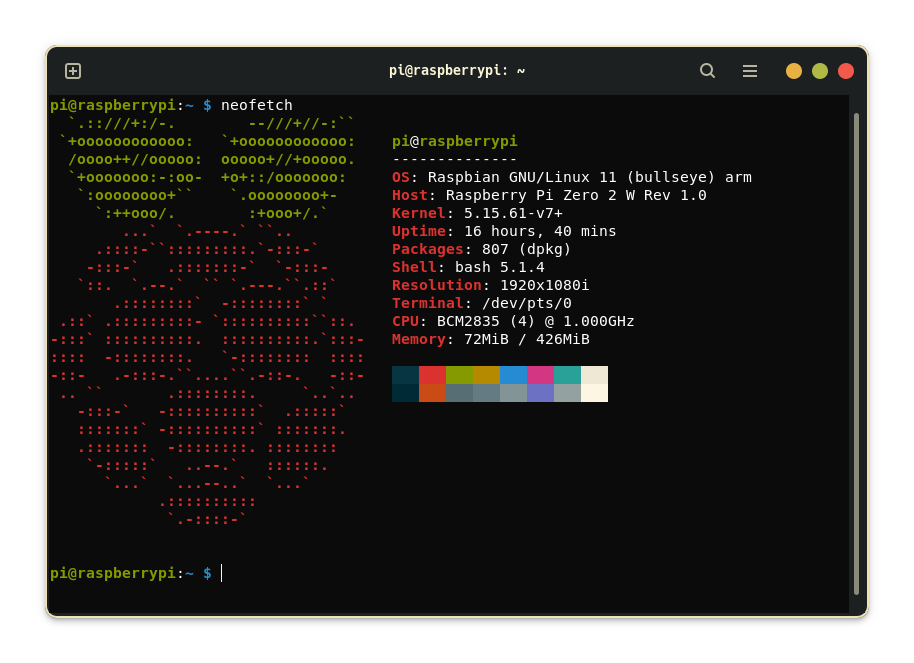
I installed Pi-hole on a Raspberry Pi Zero 2 W. However, every single board computer is a good fit. Just make sure that you have a Linux distribution installed. Raspberry Pi OS and Ubuntu are among the supported operating systems. I chose Raspberry Pi OS as my preferred system and used Raspberry Pi Imager to install it onto a microSD card.
Static IP address
Before installing Pi-hole, a static IP address must be assigned. I used ssh to connect to the the Pi. On a Linux machine you can use following command:
ssh <username>@<ip_address>Next, retrieve the current network settings. Type
hostname -Ito find the device’s IP address. The router’s gateway address is found using
ip r | grep defaultNote, this will also return wlan0 if the Pi is connected via Wi-Fi or eth0 for a ethernet connection. Take a note of your connection type as it must be set for a static address. Lastly, get the DNS address:
nano /etc/resolv.confWith all information on hand, a static IP address is set. Open the dhcpcd.conf file:
sudo nano /etc/dhcpcd.confAt the end of the file add following lines:
interface <wlan0 or eth0>
static ip_address=<ip_address>
static routers=<router's gateway address>
static domain_name_servers=<DNS address>
Save the file and reboot your system, the static IP is now set.
Install Pi-hole
To install Pi-hole simply execute this command
curl -sSL https://install.pi-hole.net | bashwhich downloads Pi-hole from the GitHub repository and starts the installation wizard. First, a warning will pop up that a static IP address must be configured, just press continue. Next, select an upstream DNS provider from the list. Pi-hole prompts the user to choose a blocklist. I chose StevenBlack’s default list which works great and eliminates most ads.
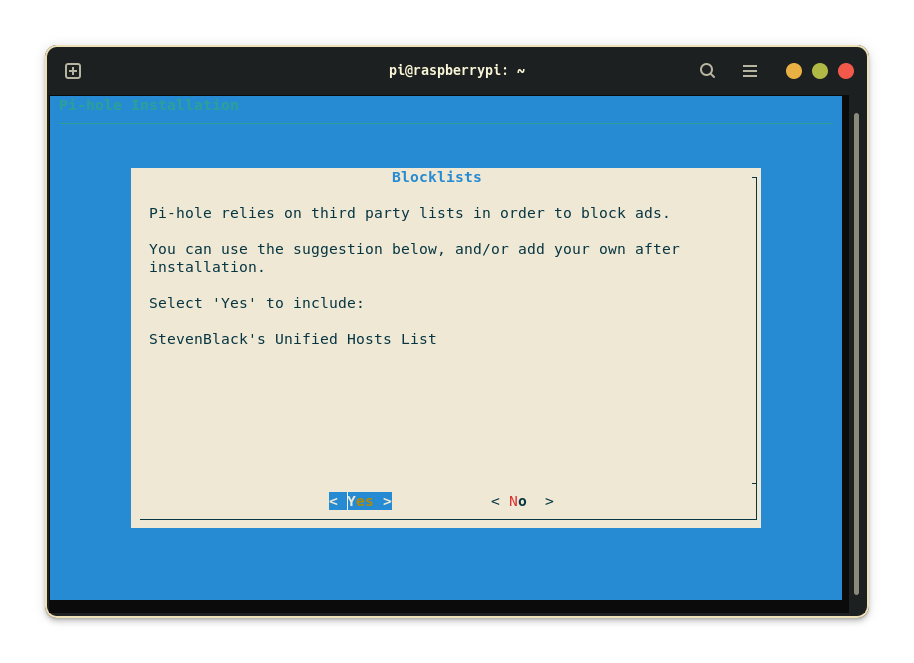
As last option, an admin web interface can be installed. The interface is used to monitor blocked ads over all active clients (Smart-TV, phone, PC). If you install the interface, the installation wizard greets you with a ‘Installation Complete’ message and details on how to login to your page. The default login password can be changed with
pihole -a -p <your_new_password>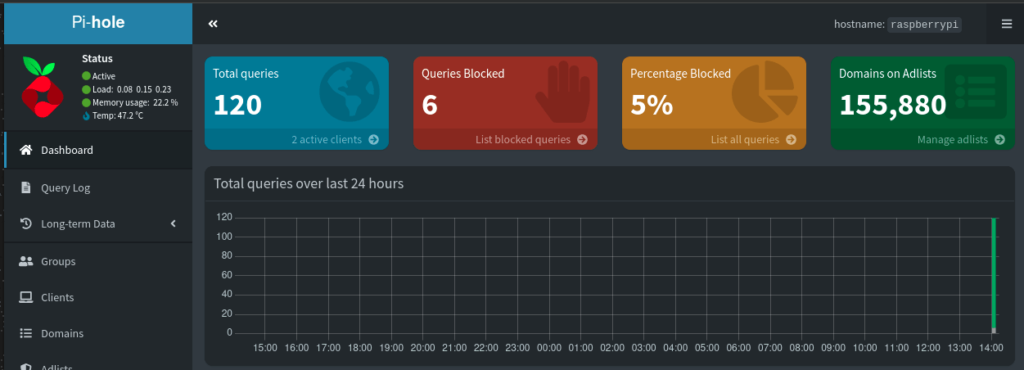
With Pi-hole installed, a device’s network setting must point to the Pi’s IP address. In case of a Smart-TV, go to network settings and most manufacturers have an advanced network setting option (although it is sometimes pretty hidden). Choose manual network settings and under DNS point to the IP address of the Pi. That’s it, ads are now blocked on your TV. If you don’t want to block ads on your devices on a one by one basis, change the DNS setting on your Wi-Fi router and add the Pi’s address and ads will be blocked network-wide.
– Jakob